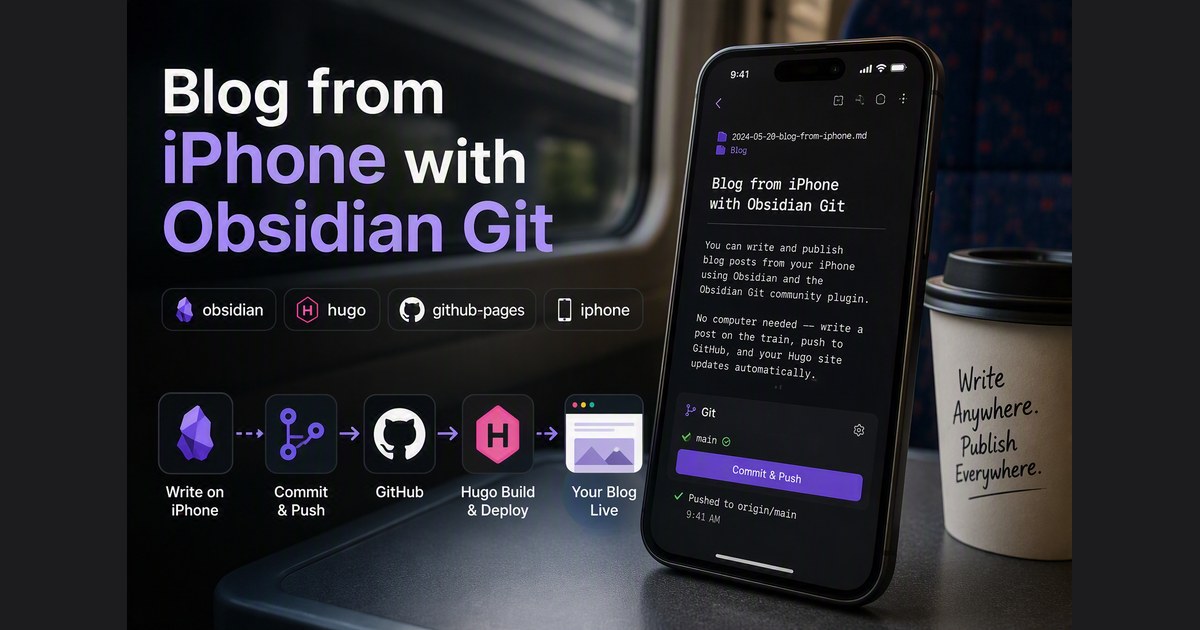
You can write and publish blog posts from your iPhone using Obsidian and the Obsidian Git community plugin. No computer needed — write a post on the train, push to GitHub, and your Hugo site updates automatically.
Here is the setup.
What You Need
- iPhone with Obsidian installed (free from App Store)
- GitHub repo with Hugo + GitHub Actions pipeline already working
- GitHub Personal Access Token (fine-grained)
Step 1: Generate a GitHub Token
- Go to https://github.com/settings/tokens
- Generate new token → Fine-grained token
- Token name:
obsidian-iphone - Expiration: 90 days (or longer)
- Repository access: Only select repositories → pick your Hugo repo
- Token name:
- Under Permissions, click "+ Add permissions"
- Find “Contents” → set to Read and write
- Metadata (Read-only) is auto-added
- Generate token → copy it immediately
Step 2: Create a Vault
Open Obsidian on iPhone → Create new vault:
- Vault name: anything (e.g.
my-blog) - Storage: On my device (NOT iCloud — Obsidian Git needs local storage)
Step 3: Install and Configure Obsidian Git
- Settings → Community plugins → Turn off Restricted Mode
- Browse → search “Git” → Install → Enable
- Settings → Git (under Community plugins):
- Authentication → Username: your GitHub username
- Authentication → Password/Token: paste the Personal Access Token
- Pull on startup: On
- Push on commit-and-sync: On
- Pull on commit-and-sync: On
- Leave everything else at default
Step 4: Clone Your Repo
- Open command palette (swipe down on the editor)
- Run: Obsidian Git: Clone an existing remote repo
- Enter URL:
https://github.com/yourusername/your-repo.git - Leave “custom git directory path” empty
- Wait for clone to complete
After cloning, you will see the full repo structure in Obsidian’s file browser. Your posts live in content/posts/.
Step 5: Set Up Hugo Template
- Create a folder
_templates/at the vault root - Create a note
_templates/hugo-post(Obsidian auto-adds.md) with this content:
+++
date = '{{date:YYYY-MM-DDTHH:mm:ssZ}}'
draft = false
title = ''
tags = []
+++
- Settings → Core plugins → Templates → toggle On
- Settings → Templates → set Template folder location:
_templates
Writing and Publishing
Write a new post:
- Open Obsidian → it auto-pulls the latest from GitHub
- Navigate to
content/posts/ - Create a new note (name it like
2026-08-15-my-topic) - Tap the Templates icon in the ribbon (bottom-right) → select
hugo-post - Date fills in automatically. Type your title and start writing.
Publish:
- Open command palette (swipe down)
- Run: Obsidian Git: Commit-and-sync
- Enter a commit message
Your site rebuilds via GitHub Actions and is live in about 60 seconds.
Pulling Updates from Desktop
If you wrote posts on your desktop since last opening Obsidian on iPhone, the plugin auto-pulls when you open the app. You can also manually pull:
- Command palette → Obsidian Git: Pull
Troubleshooting
| Error | Cause | Fix |
|---|---|---|
403 on push | Token missing Contents: Read and write permission | Regenerate token with correct permissions |
Push rejected: not a fast-forward | Desktop force-pushed or history diverged | Delete vault, re-clone fresh |
Merges with conflicts not supported | Same file edited on two devices | Delete vault, re-clone, re-do your edit |
Template shows {{date}} literally | Core Templates plugin not enabled | Settings → Core plugins → Templates → On |
Extra " in date field | Template has stray quote | Fix template: use '{{date:YYYY-MM-DDTHH:mm:ssZ}}' |
Recommended Git Plugin Settings
If you also write posts from a desktop, the default auto-sync can cause data loss — the plugin may commit deletions of files that exist in git but not yet on your iPhone disk.
| Setting | Value | Why |
|---|---|---|
| Auto commit-and-sync interval | 0 (disabled) | Stop blind auto-commits that delete desktop-created files |
| Pull on startup | Enabled | Always get latest when you open Obsidian |
| Merge strategy on conflicts | Their changes | Remote (desktop) wins if conflict |
Then when you finish writing a post, manually trigger “Commit and Sync” from command palette. That’s safe because:
- You just pulled on startup (desktop posts are on disk)
- You’re only adding your new post
- The commit won’t contain deletions of files you didn’t touch
The rule is simple: don’t let it auto-commit when you haven’t checked what’s on disk first.
Also: don’t use the iPhone GitHub app to edit files in the same repo. It creates commits that Obsidian doesn’t know about, causing merge conflicts on the next pull.
Conflict Prevention
- Always let Obsidian pull on open before editing
- Do not edit the same post on phone and desktop at the same time
- If conflicts happen: easiest fix is delete the vault and re-clone
Limitations
| Limitation | Workaround |
|---|---|
| No Hugo preview on phone | Trust your markdown, or check the live site after push |
| Full repo visible (config, themes) | Ignore them, only work in content/posts/ |
| HTTPS only (no SSH) | Use Personal Access Token |
| Token expires | Regenerate on GitHub, update in plugin settings |
| Slow clone on large repos | Only happens once — incremental pulls are fast |
Security
- Use a fine-grained token limited to your blog repo only
- Token is stored locally in
.obsidian/on your device - Set a reasonable expiry (90 days) and rotate when it expires
- If you lose your phone, revoke the token immediately at GitHub → Settings → Tokens
The Complete Multi-Device Pipeline
iPhone (Obsidian Git)          Desktop (Obsidian + publish.sh)
       │                                │
       ▼                                ▼
   git push (HTTPS)              git push (SSH)
       │                                │
       └──────────┬─────────────────────┘
                  ▼
         GitHub: artark-ai repo
         GitHub Actions → Hugo build
         GitHub Pages → live site
Write anywhere. Push from anywhere. One pipeline builds it all.