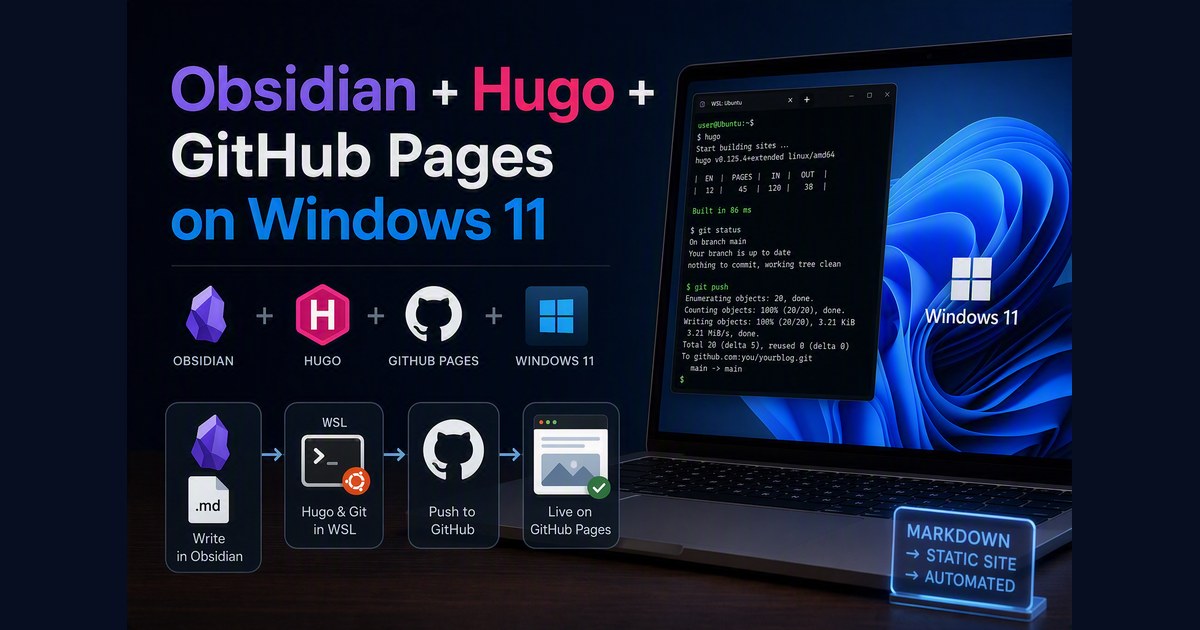
Obsidian is a beautiful markdown editor. Hugo is a fast static site generator. GitHub Pages is free hosting with CI/CD. The challenge is wiring them together on Windows 11 where Obsidian runs natively but Hugo and git live in WSL.
Here is the setup that works.
The Problem
Obsidian is a Windows desktop app. Hugo and git run in WSL (Ubuntu). They need to read and write the same markdown files. The obvious answers all fail:
| Approach | Problem |
|---|---|
Obsidian vault at \\wsl.localhost\... | EISDIR error — Obsidian cannot watch WSL network paths |
Windows junction (mklink /J) to WSL path | “Local volumes required” — junctions need local drives |
| Symlink from Hugo repo to Windows folder | GitHub Actions runner does not have your Windows path — CI breaks |
| Obsidian Git plugin pushing directly | Two git clients on same remote = merge conflicts |
The Solution: Vault + Publish Script
Keep two copies: Obsidian writes to a Windows-native folder, a one-line publish script syncs to the Hugo repo and pushes. The vault uses the same content/posts/ structure as the Hugo repo — same layout on both desktop and iPhone.
Obsidian (Win11)                              WSL
┌─────────────────────────────┐              ┌──────────────────────────────┐
│ C:\Users\you\               │              │ ~/hugo-site/                 │
│   obsidian-vaults\          │  publish.sh  │   content/posts/             │
│     my-blog\                │ ──────────▶  │     2026-08-17-my-post/      │
│       content/posts/        │   rsync      │       index.md               │
│         2026-08-17-my-post/ │              │       banner.png             │
│           index.md          │              │                              │
│           banner.png        │              │                              │
└─────────────────────────────┘              └──────────────┬───────────────┘
                                                            │ git push
                                                            ▼
                                             GitHub Actions → Pages (live)
Step 1: Create the Vault Folder
From WSL:
mkdir -p /mnt/c/Users/you/obsidian-vaults/my-blog/content/posts
Copy any existing posts into it:
cp -r ~/hugo-site/content/posts/* /mnt/c/Users/you/obsidian-vaults/my-blog/content/posts/
Step 2: Open the Vault in Obsidian
In Obsidian on Windows → Create new vault:
- Vault name:
my-blog - Location:
C:\Users\you\obsidian-vaults
You should see your content/posts/ folder in the sidebar immediately.
Step 3: Configure Obsidian
Under Settings → Files & Links:
- New link format: Relative path to file
- Default location for new attachments: Same folder as current file
- Use
[[Wikilinks]]: turn OFF
Tip: Turning off Wikilinks makes Obsidian output
instead of![[image.png]]— standard Markdown that Hugo understands. Setting attachments to “Same folder as current file” ensures images land inside the page bundle alongsideindex.md.
Step 4: Create the Publish Script
Save this as publish.sh in your Hugo site root:
#!/bin/bash
# publish.sh — Sync posts between Obsidian vault and Hugo repo, build, push
# Usage: ./publish.sh [commit message]
#
# Configure this environment variable (e.g. in ~/.bashrc):
#   OBSIDIAN_VAULT_POSTS - path to Obsidian vault content/posts folder

SCRIPT_DIR="$(cd "$(dirname "$0")" && pwd)"
HUGO_SITE="${HUGO_SITE_DIR:-$SCRIPT_DIR}"
HUGO_POSTS="$HUGO_SITE/content/posts"
VAULT="${OBSIDIAN_VAULT_POSTS:?Set OBSIDIAN_VAULT_POSTS to your Obsidian vault content/posts folder}"

cd "$HUGO_SITE"

# Pull latest (in case iPhone pushed new posts)
git pull --rebase origin main

# Sync NEW files from repo → vault (posts from other devices)
rsync -av --ignore-existing "$HUGO_POSTS/" "$VAULT/"

# Sync VAULT → REPO (vault is the source of truth for local edits)
rsync -av --delete --exclude='.obsidian' "$VAULT/" "$HUGO_POSTS/"

# Show changes
git status --short

# Verify build
hugo --minify --quiet
if [ $? -ne 0 ]; then
    echo "ERROR: Hugo build failed."
    exit 1
fi

# Commit and push
MSG="${1:-update blog posts}"
git add -A
if git diff --cached --quiet; then
    echo "Nothing to publish."
    exit 0
fi
git commit -m "$MSG"
git push origin main

echo "✓ Published. Site live in ~60 seconds."
Make it executable and set the env var:
chmod +x publish.sh
echo 'export OBSIDIAN_VAULT_POSTS="/mnt/c/Users/you/obsidian-vaults/my-blog/content/posts"' >> ~/.bashrc
source ~/.bashrc
Step 5: Set Up Templater for New Posts
The Templater community plugin creates a complete page bundle (folder + index.md + front matter) in one action.
- Settings → Community plugins → Browse → install Templater → Enable
- Create a folder
_templates/at the vault root - Create
_templates/new-post.md:
<%*
const title = await tp.system.prompt("Post title");
if (!title) return;
const tags = await tp.system.prompt("Tags (comma-separated, or leave empty)");
const slug = title.toLowerCase().replace(/[^a-z0-9]+/g, '-').replace(/^-|-$/g, '');
const date = tp.date.now("YYYY-MM-DD");
const datetime = tp.date.now("YYYY-MM-DDTHH:mm:ssZ");
const folder = `content/posts/${date}-${slug}`;

// Format tags
let tagLine = "tags = []";
if (tags && tags.trim()) {
    const tagArray = tags.split(',').map(t => `'${t.trim()}'`).join(', ');
    tagLine = `tags = [${tagArray}]`;
}

const content = `+++
date = '${datetime}'
draft = false
title = "${title}"
${tagLine}

[params.cover]
  image = "banner.jpg"
  alt = "${title}"
  relative = true
+++

`;

await app.vault.createFolder(folder);
await app.vault.create(`${folder}/index.md`, content);
await app.workspace.openLinkText(`${folder}/index.md`, "");

// Remove the temporary note that triggered this template
if (tp.file.title !== "index") {
    await app.vault.trash(tp.file);
}
%>
- Settings → Templater → set Template folder location:
_templates
Usage: Create any new note → run Templater → select new-post. It prompts for title and tags, creates the page bundle folder with index.md, and opens it for editing. Drop a banner.png into the same folder for the cover image.
Important: The title uses double quotes (
title = "...") in the TOML front matter. Single quotes break on apostrophes (e.g.Google'swould terminate the string early).
You can also keep the core Templates plugin with a simple hugo-post template for quick notes on iPhone (where Templater isn’t available):
+++
date = '{{date:YYYY-MM-DDTHH:mm:ssZ}}'
draft = false
title = ""
tags = []
+++
Daily Workflow
Write — Create any new note → run Templater → new-post → fills title, tags, creates page bundle:
content/posts/2026-08-17-my-post/
├── index.md      ← front matter + content
└── banner.png    ← cover image (drop in manually)
Preview — In WSL:
rsync -av /mnt/c/Users/you/obsidian-vaults/my-blog/content/posts/ ~/hugo-site/content/posts/
hugo server -D
Publish — When satisfied:
./publish.sh "add post: my post title"
That is the entire process. Write in Obsidian, run one command, site is live.
Why Not a Symlink?
It seems elegant — symlink content/posts/ to the Windows vault folder and everything is one source of truth. It works locally. Hugo builds through it. But git stores the symlink target path literally:
content/posts -> /mnt/c/Users/you/obsidian-vaults/my-blog/content/posts
When GitHub Actions checks out the repo, that path does not exist on the Ubuntu runner. The build fails with missing content. Real files in the repo are the only way CI/CD works.
The rsync approach costs one extra command but keeps the pipeline reliable.
Why Not Obsidian Git Plugin on Desktop?
The Obsidian Git community plugin can auto-commit and push on a timer. Sounds perfect for desktop, but:
- You lose the Hugo build verification step — a broken front matter goes straight to production
- Two git clients (Obsidian on Windows + terminal on WSL) hitting the same remote causes conflicts
- Auto-commits every 5 minutes create noisy history
Keeping git in WSL gives you control: preview before publish, meaningful commit messages, and one source of authority.
Note: Obsidian Git works great on iPhone where WSL isn’t available — it pushes directly to GitHub via HTTPS + Personal Access Token. See the companion post on iPhone setup.
The Full Stack
Obsidian (Win11 desktop)     — write markdown (Templater creates page bundles)
rsync (WSL)                  — sync vault content/posts/ to Hugo repo
Hugo (WSL)                   — build static HTML
Git (WSL)                    — push to GitHub
GitHub Actions (cloud)       — build + deploy
GitHub Pages (cloud)         — serve the site
No database. No CMS login. No block editor. No WordPress plugins. Just markdown files, a terminal, and a one-line publish command.